
Custom Navigation
Build your application menu to match your company structure — drag and drop modules and extensions into a tree-based navigation. Create groups, assign icons, and localize names in 28 languages. Access rights are filtered automatically so every user only sees the menu items they are allowed to reach.
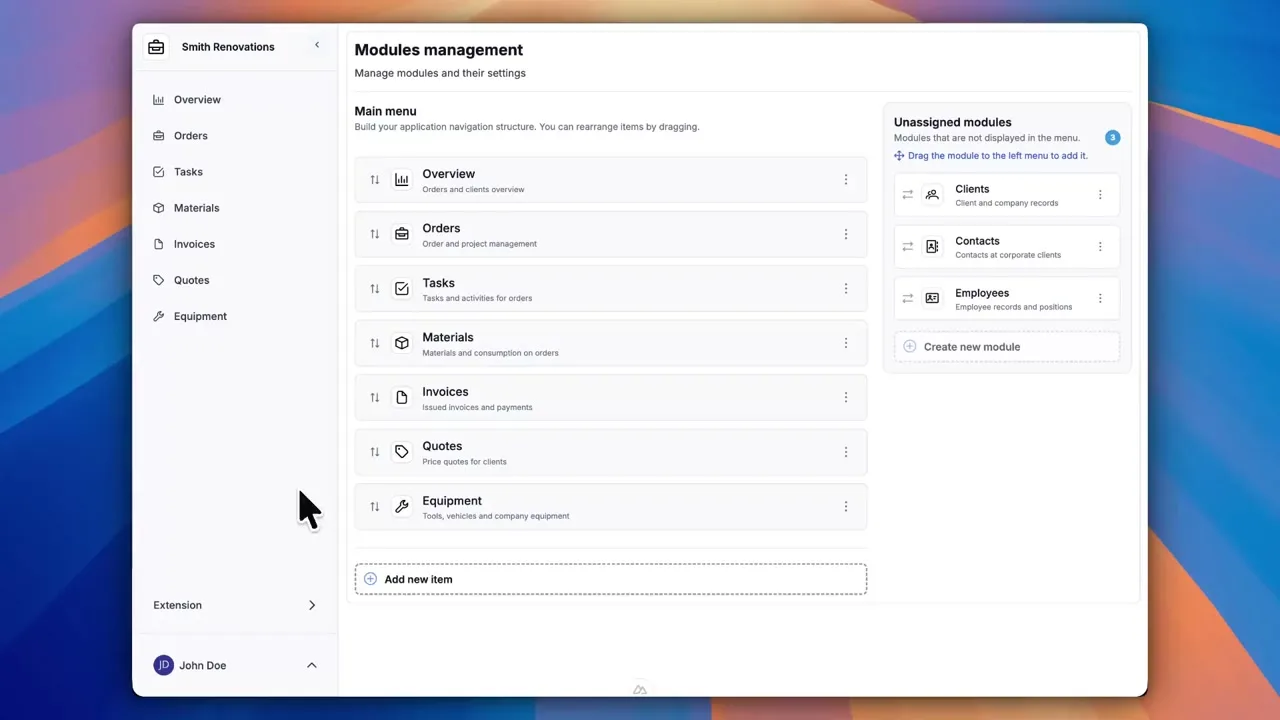
Build a menu that mirrors your business
The left sidebar in your Portiny app does not have to follow the order you created modules in. Drag them into a custom navigation tree that reflects how your company actually operates — departments, projects, workflows, whatever makes sense.
Everything happens in a visual editor. Create groups, name them in multiple languages, pick icons. No config files, no developer needed.
How menu building works
Open the menu editor
In the Modules section, you will find the navigation tree alongside a list of unassigned items.
Create groups
Name your folders in every language your app supports and assign an icon. Groups act as containers — they do not link anywhere themselves.
Drag modules into place
Move items between groups or to the root level. Every change saves instantly — no submit button required.
Users see the updated menu
On the next page load, the new navigation is live. Items the user lacks permission for are hidden automatically.
Why customize your navigation
Group modules by department, project, or workflow — not by creation date.
The server hides items the user cannot access. No manual filtering on your side.
Each folder label appears in the signed-in user's language.
Modules not yet placed in the tree show up in a separate panel so nothing gets forgotten.
Assemble the entire menu with drag and drop. Changes go live immediately.
Two views of the same sidebar
Expanded panel
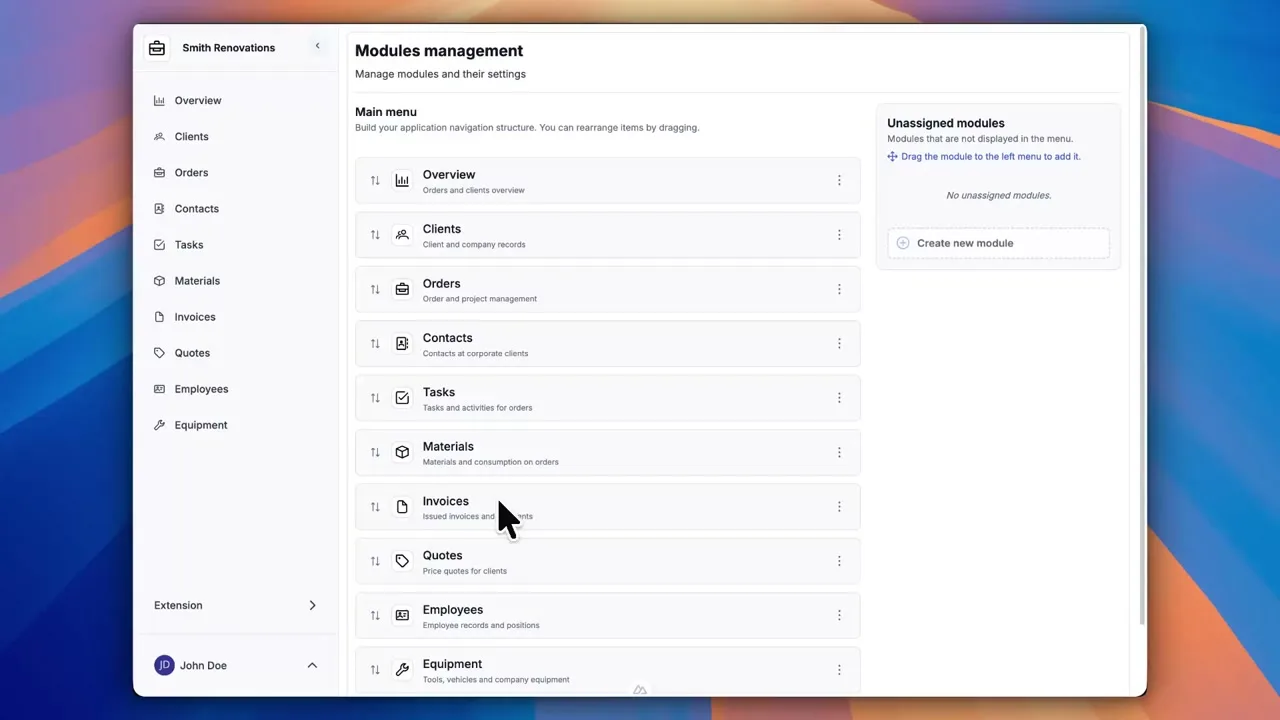
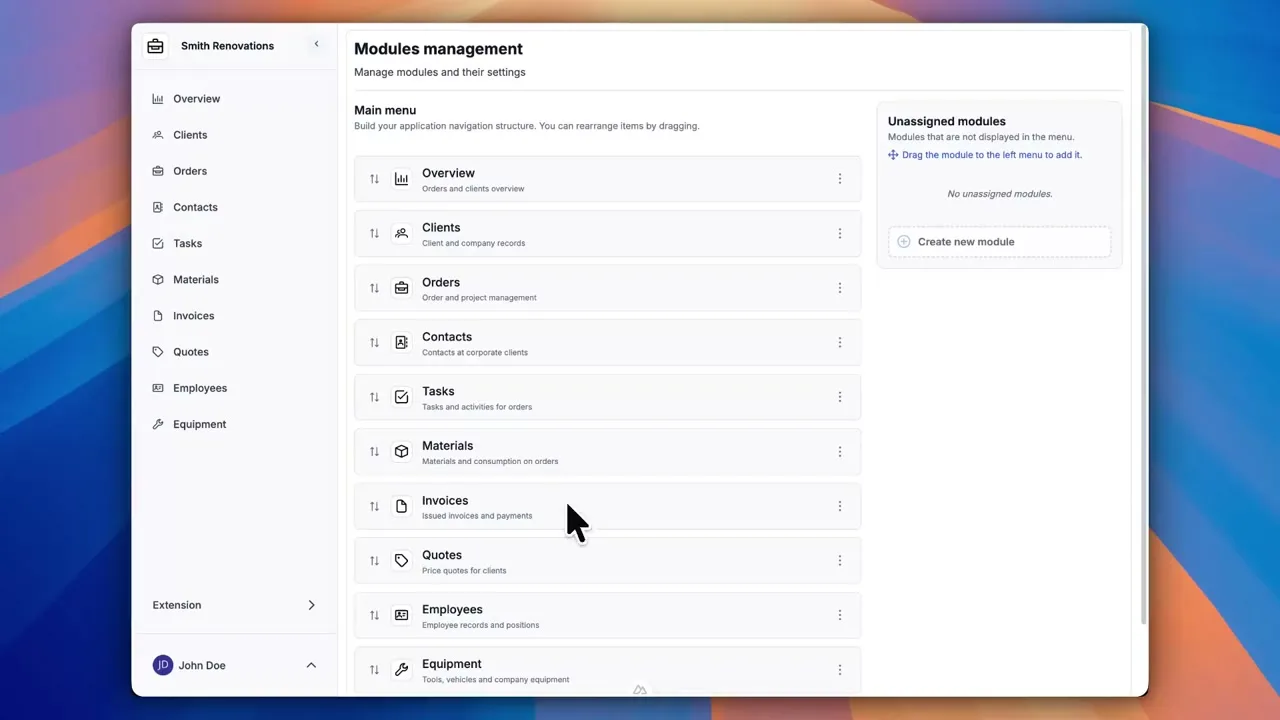
Full navigation with group names, icons, and nested items. Even apps with dozens of modules stay easy to browse thanks to the hierarchical tree.
Collapsed icon-only mode
When the sidebar is collapsed, only icons remain visible. This frees up screen space while keeping every section one click away.
Permissions control visibility
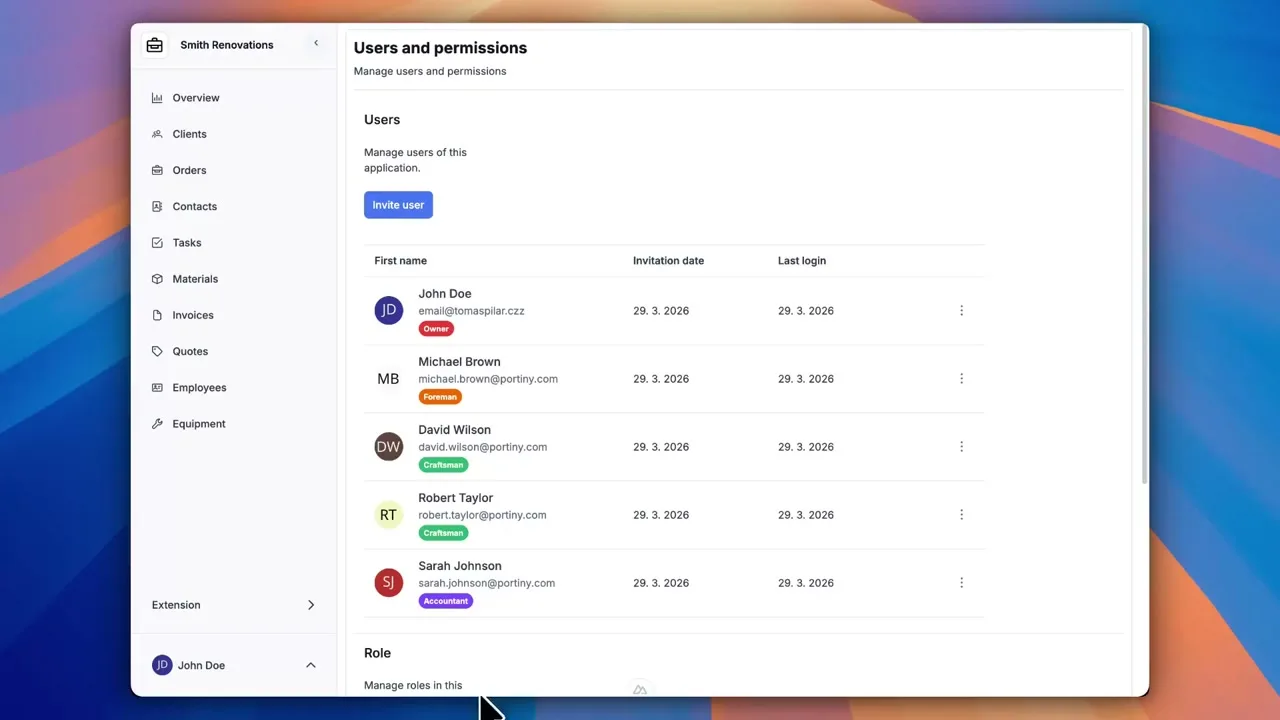
The navigation tree is shared across the whole app, but the server filters it per user. If someone lacks VIEW permission on a module, the link never shows up in their sidebar. Just configure roles correctly and the rest happens on its own.
Organize your app menu your way
Sign up and see how quickly you can rearrange the navigation in Portiny to match your company structure. No coding, no waiting for a vendor.
Try for freeRelated Features
Try everything yourself
After signing up, you can create a demo project — a sample construction company with 9 modules and test data. Everything you see in the videos, you can click through and try yourself.